BlackBoard LTI 1.3 Account Integration
Updated
Below are the steps for creating account integration link in Blackboard :
- Log into your Blackboard Portal using your faculty account.
On the left side panel click on Courses and select the Course.
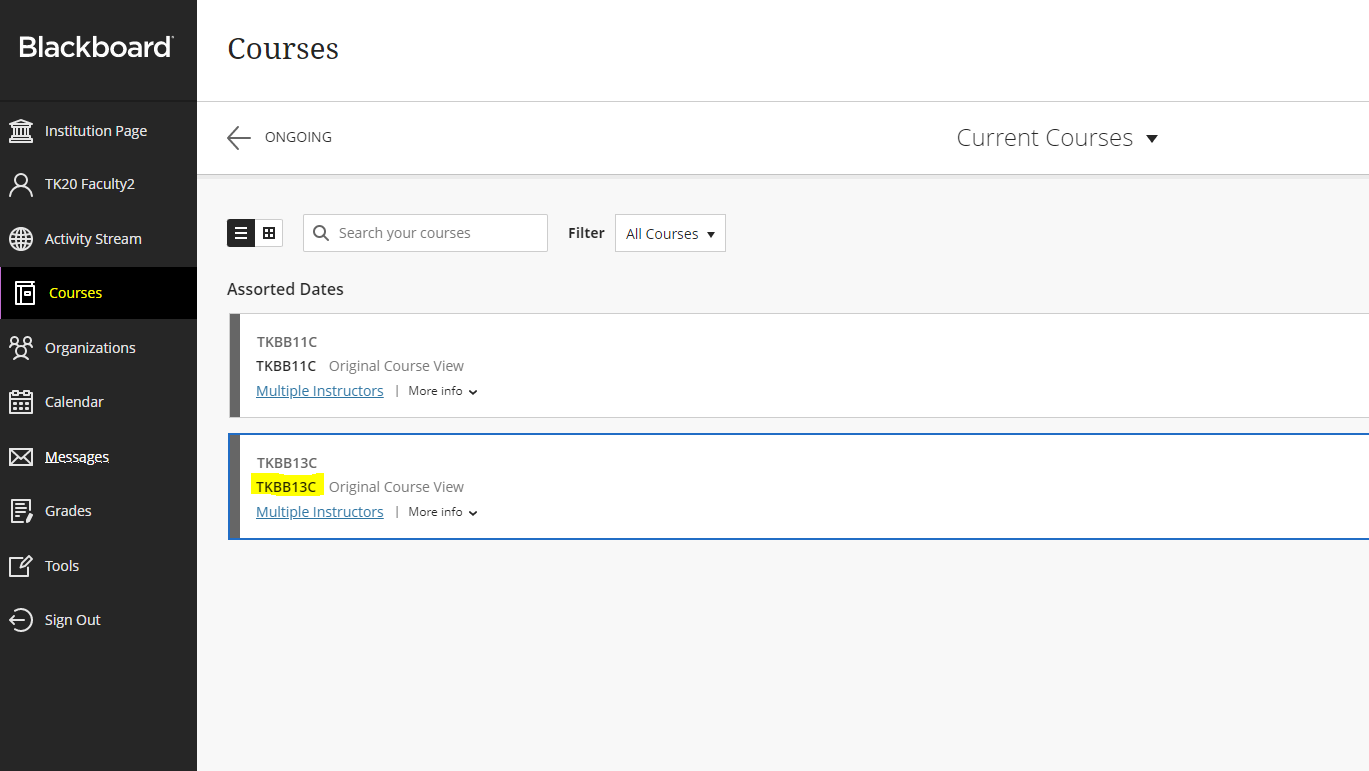
- Click on Content in the left side panel.
Click Build Content from the top menu and click on the Account Placement type which is created by Admin in the Administrator Tools
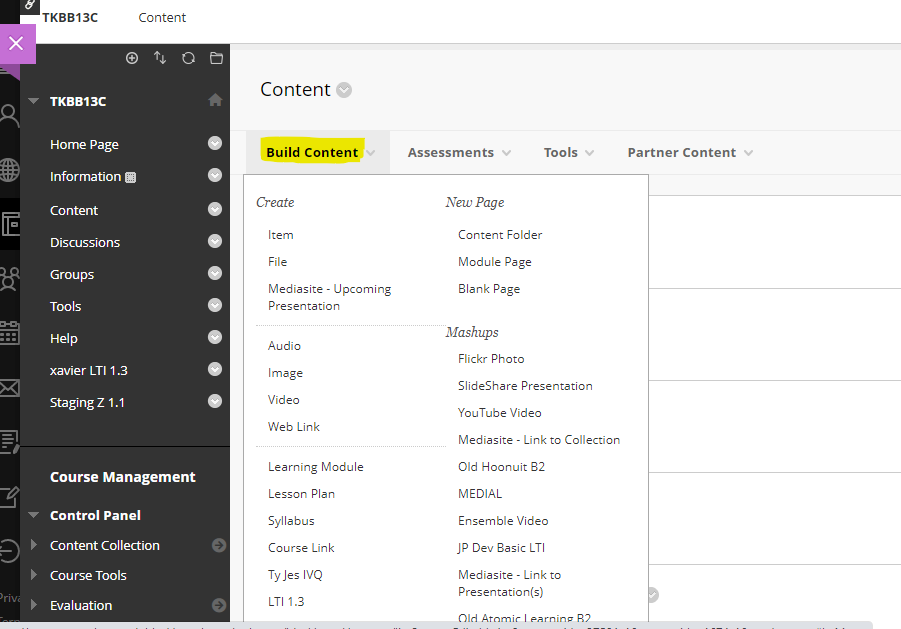
After clicking on the Account Placement type, a new page for link creation is displayed.
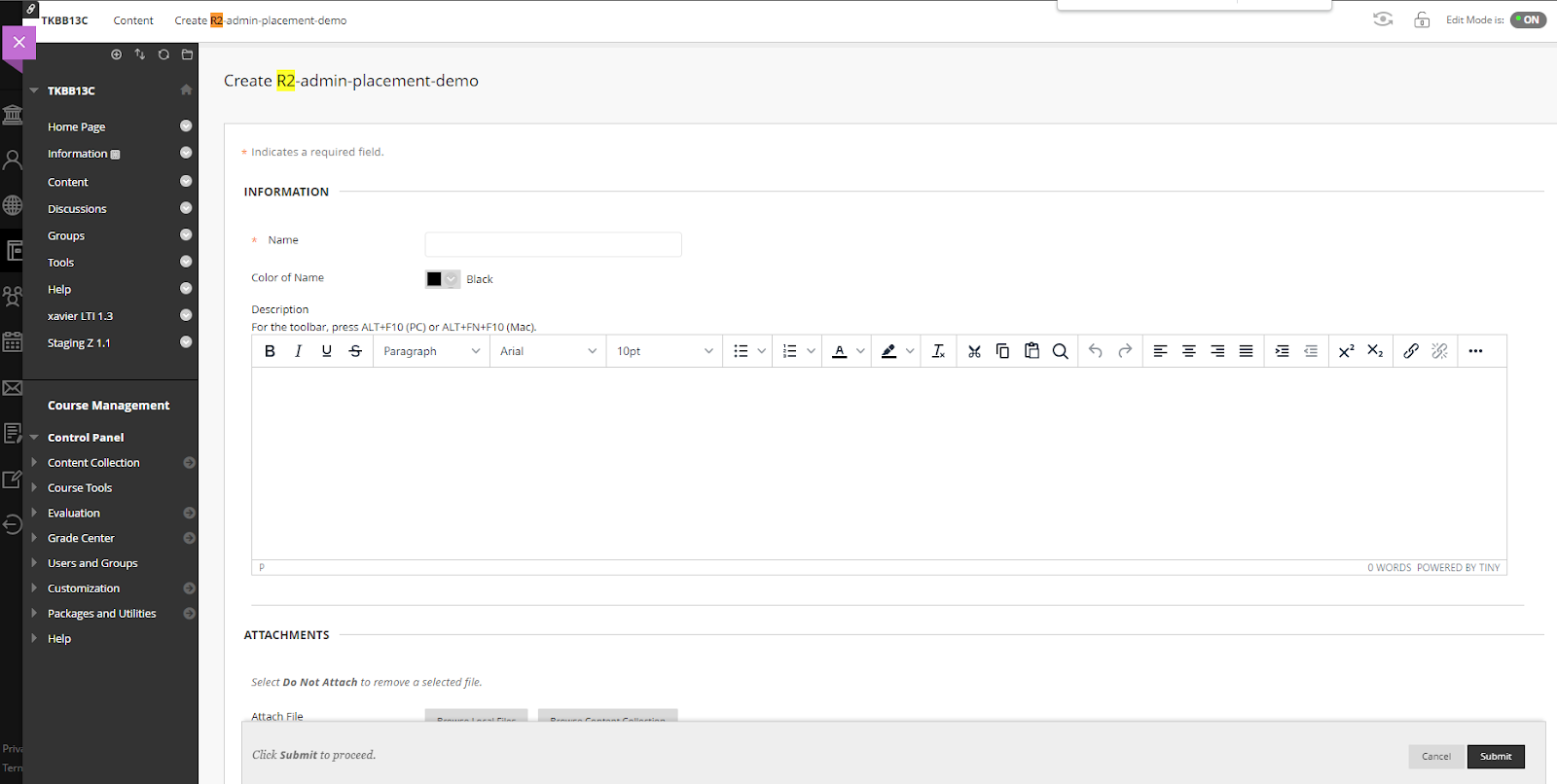
- Enter a Name for the Account Placement Type (Note- Name provided should be understandable for layman example- BlackBoard 1.3 account faculty).
- All the fields should be as it default.
- Click Submit button.
- Search your Account placement type in Content and click on it.
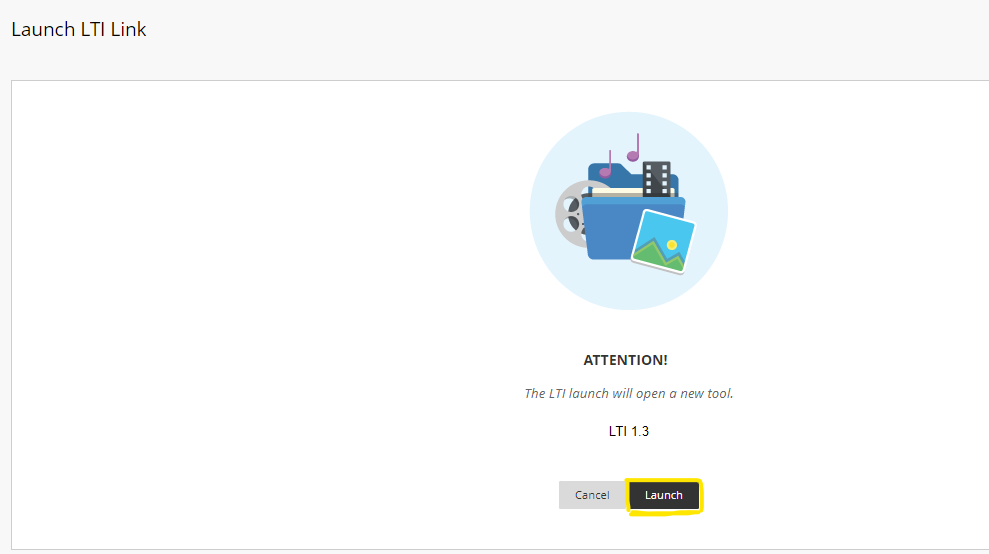
Hit the Launch button.
Student End
- Login into your Blackboard Portal using your Student account.
- On the left side panel click on Courses and find your Course.
- Click on Course on main screen and click on Content.
- Search and click on Account Placement Type that is created by faculty.
- Hit the Launch button.
- Tk20 home screen will open up.
/hc/en-us/categories/4410672691227-Watermark-Updates
/hc/theming_assets/01K3KX0J2BB1MZMKY3SXP69GZW
Release Notes
Announcements, News, & Roadmaps
custom
/hc/en-us/categories/4410673196187-Technical-Resources
/hc/theming_assets/01K3KX0JC9JW7SRY2VYJQ6YVGT
Integrations & Other Resources
Integrations, authentication, accessibility resources
custom
https://academy.watermarkinsights.com/
/hc/theming_assets/01K3KX0JQS0WJEC0W76G3E8209
Need Training or Consultation? Visit the Academy
Click to access the Watermark Academy for consultation, training, and implementation companion courses
custom
https://support.watermarkinsights.com/hc/en-us/articles/16630244989851-The-Watermark-Ideas-Portal
/hc/theming_assets/01K3KX0K2DNZR7X2PJFZAE919A
Have Ideas? Visit the Ideas Portal
Submit and vote on ideas for new features and improvements
custom
https://support.watermarkinsights.com/hc/en-us/sections/17972200371867-Accessibility
/hc/theming_assets/01K10X09JFPDEK1PJZKYJYTK0Q
Accessibility
Accessibility resources and articles
How do I access my Student Learning & Licensure account?