BlackBoard LTI 1.3 Placement Creation by Admin
Updated
LTI 1.3 BB Placement Creation by Admin
-
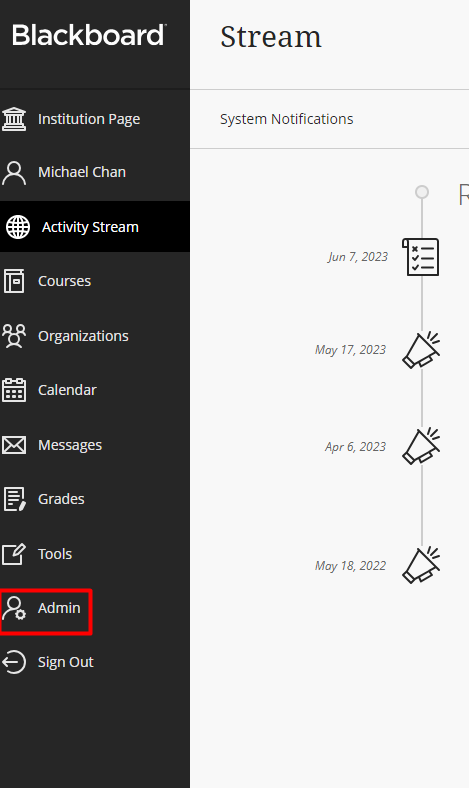
Log into your Blackboard administrator account and search for Admin in the left panel.
-
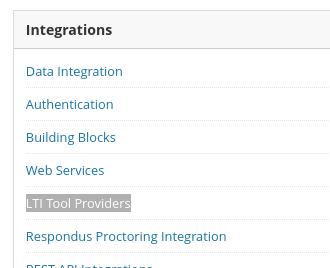
Click LTI Tool providers under Integrations header
-
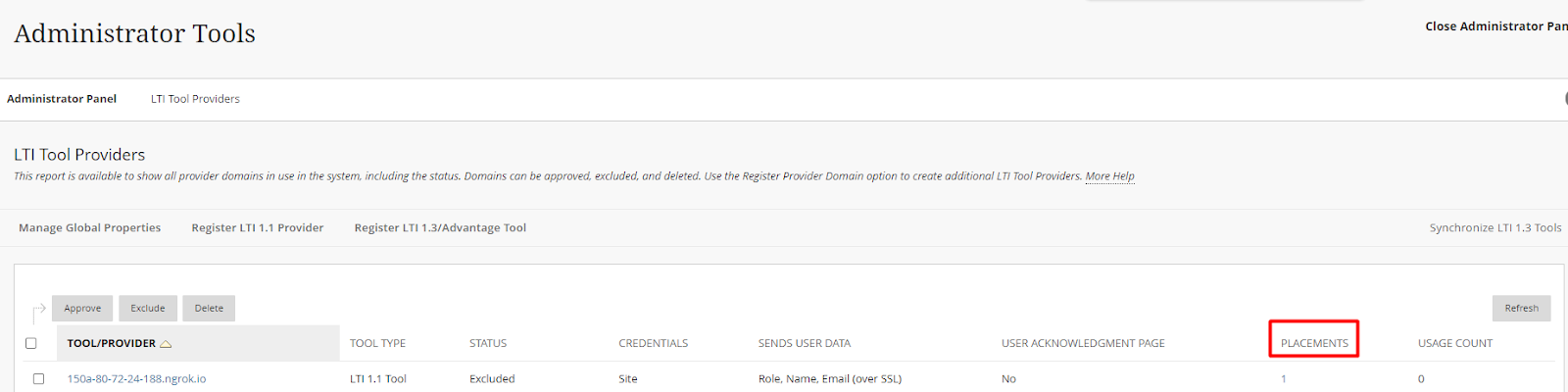
Click on the link displayed under the Placements column corresponding to the Tk20 tool provider created above.
-
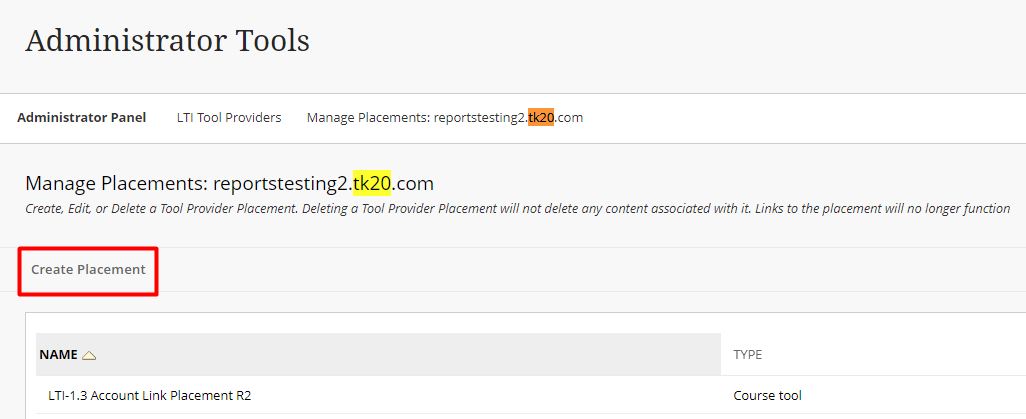
Click the Create Placement button.
-
Enter the following to create a placement:
-
Enter a Label name of your choice
-
Enter a unique identifier in the Handle field
-
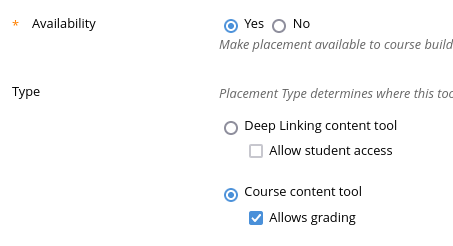
Select Course content tool for the Type
-
Check the box for Allows grading
-
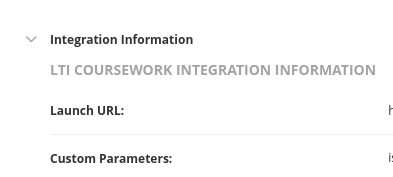
Copy the Launch URL and Custom parameters from Integration Information under tab LTI Advantage (v1.3) of LTI Tool Provider setup menu in Tk20.
-
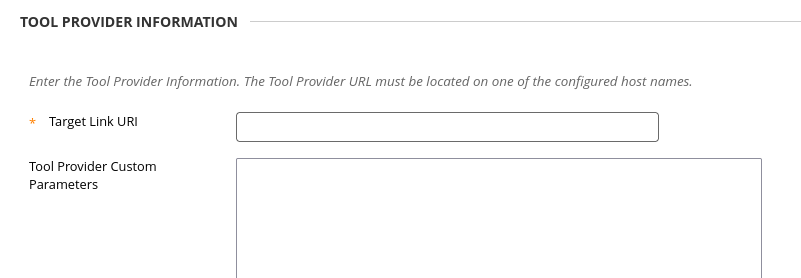
Paste it into Tool Provider/Target Link URI and custom parameters fields respectively:
-
Click Submit
-
Click the LTI Tool Providers button
-
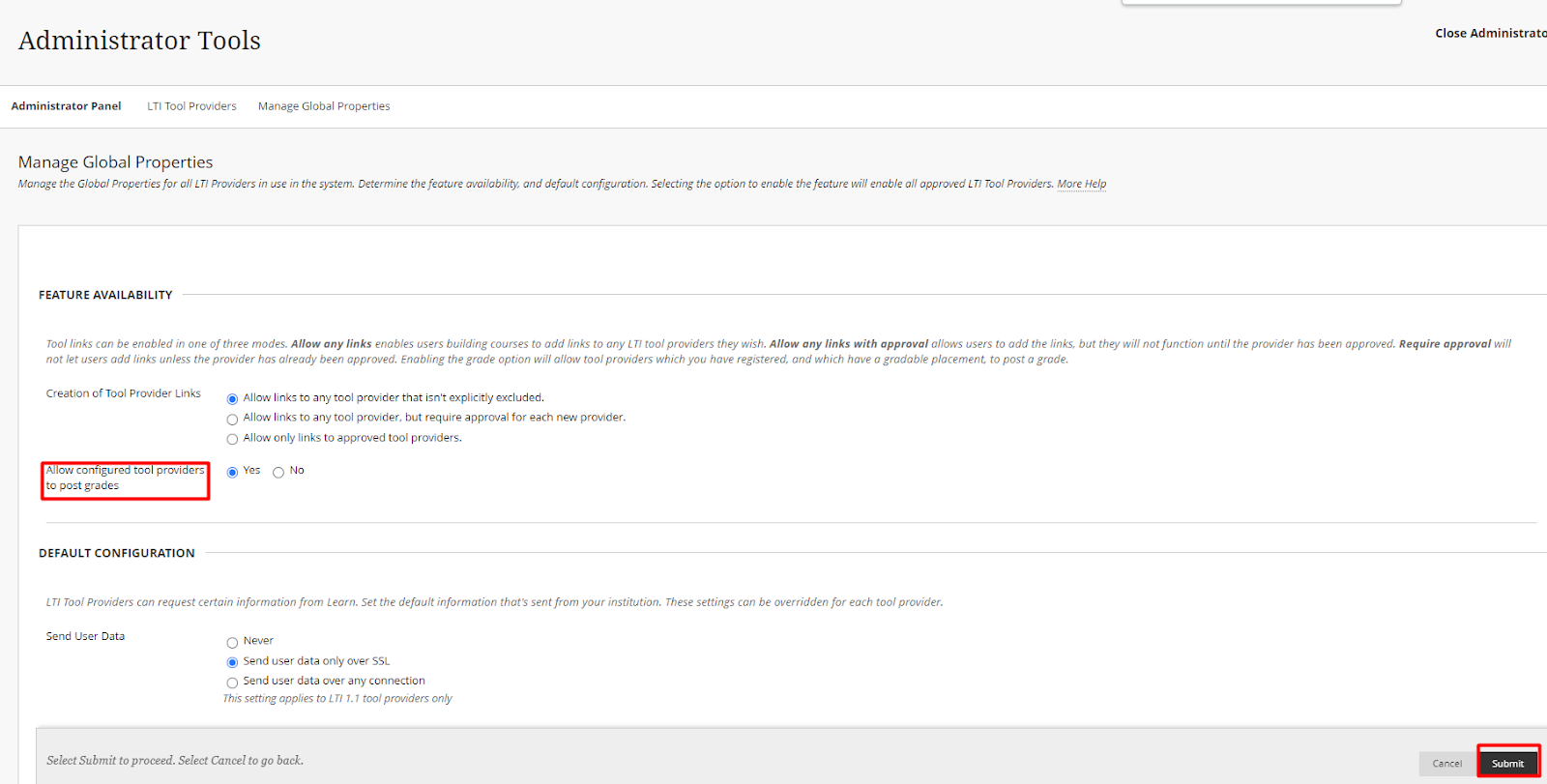
Click Manage Global Properties
-
Verify that Allow configured tool providers to post grades is enabled, and click the Submit button.
/hc/en-us/categories/4410672691227-Watermark-Updates
/hc/theming_assets/01K3KX0J2BB1MZMKY3SXP69GZW
Release Notes
Announcements, News, & Roadmaps
custom
/hc/en-us/categories/4410673196187-Technical-Resources
/hc/theming_assets/01K3KX0JC9JW7SRY2VYJQ6YVGT
Integrations & Other Resources
Integrations, authentication, accessibility resources
custom
https://academy.watermarkinsights.com/
/hc/theming_assets/01K3KX0JQS0WJEC0W76G3E8209
Need Training or Consultation? Visit the Academy
Click to access the Watermark Academy for consultation, training, and implementation companion courses
custom
https://support.watermarkinsights.com/hc/en-us/articles/16630244989851-The-Watermark-Ideas-Portal
/hc/theming_assets/01K3KX0K2DNZR7X2PJFZAE919A
Have Ideas? Visit the Ideas Portal
Submit and vote on ideas for new features and improvements
custom
https://support.watermarkinsights.com/hc/en-us/sections/17972200371867-Accessibility
/hc/theming_assets/01K10X09JFPDEK1PJZKYJYTK0Q
Accessibility
Accessibility resources and articles
How do I access my Student Learning & Licensure account?