Time Log Hours by Category Report
Updated
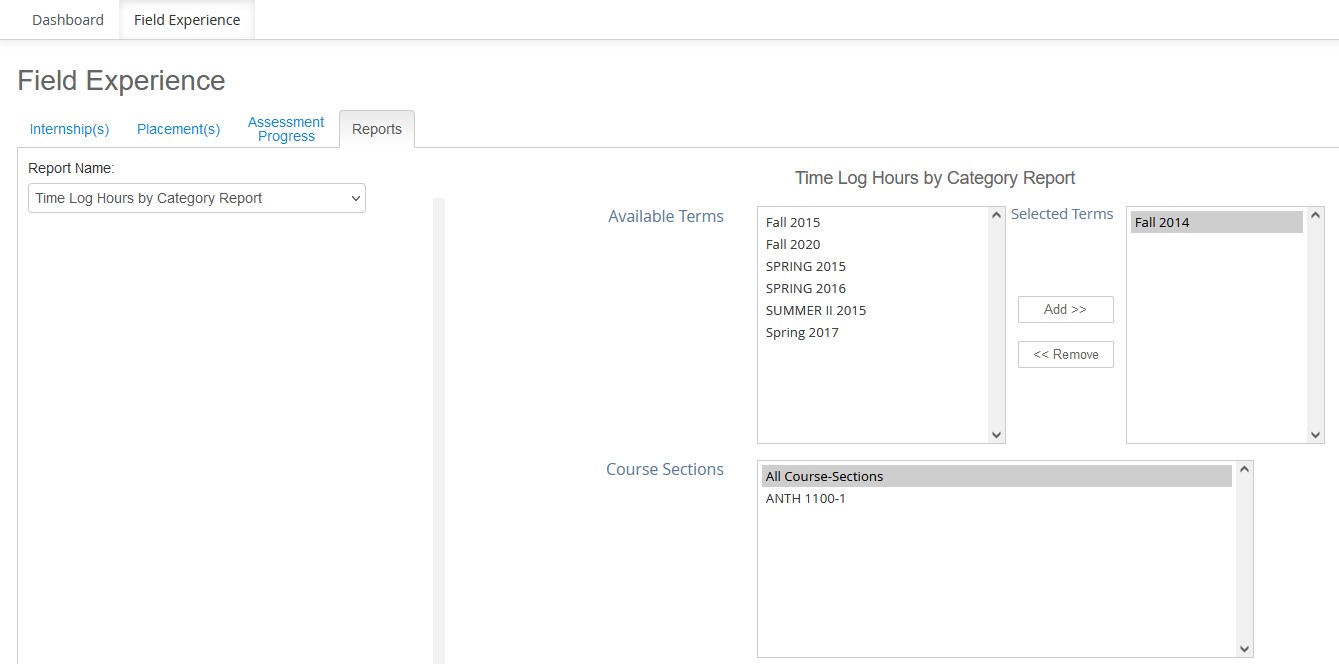
To create a Time Log Hours by Category Report:
-
Log into a FEM Administrator account or Placement Coordinator account
-
Go to Field Experience
-
Click the Reports tab
-
Select Time Log Hours by Category Report from the dropdown
-
Add one or more Terms
-
Select one or more Course Sections
-
Select one or more Internship Title
-
Select one or more Intern Name
-
Select one or more Time Log Category
-
Select a Status (All Statuses or Unapproved)
-
Enter a Total Hours Threshold (optional)
-
From the Export To dropdown, choose how you would like
to
view the report (On Screen View or Comma Separated Value)
-
Click View Report
/hc/en-us/categories/4410672691227-Watermark-Updates
/hc/theming_assets/01K3KX0J2BB1MZMKY3SXP69GZW
Release Notes
Announcements, News, & Roadmaps
custom
/hc/en-us/categories/4410673196187-Technical-Resources
/hc/theming_assets/01K3KX0JC9JW7SRY2VYJQ6YVGT
Integrations & Other Resources
Integrations, authentication, accessibility resources
custom
https://academy.watermarkinsights.com/
/hc/theming_assets/01K3KX0JQS0WJEC0W76G3E8209
Need Training or Consultation? Visit the Academy
Click to access the Watermark Academy for consultation, training, and implementation companion courses
custom
https://support.watermarkinsights.com/hc/en-us/articles/16630244989851-The-Watermark-Ideas-Portal
/hc/theming_assets/01K3KX0K2DNZR7X2PJFZAE919A
Have Ideas? Visit the Ideas Portal
Submit and vote on ideas for new features and improvements
custom
https://support.watermarkinsights.com/hc/en-us/sections/17972200371867-Accessibility
/hc/theming_assets/01K10X09JFPDEK1PJZKYJYTK0Q
Accessibility
Accessibility resources and articles
How do I access my Student Learning & Licensure account?