The following instructions will allow you to insert a link in your D2L course that takes students and faculty to TK20 coursework.
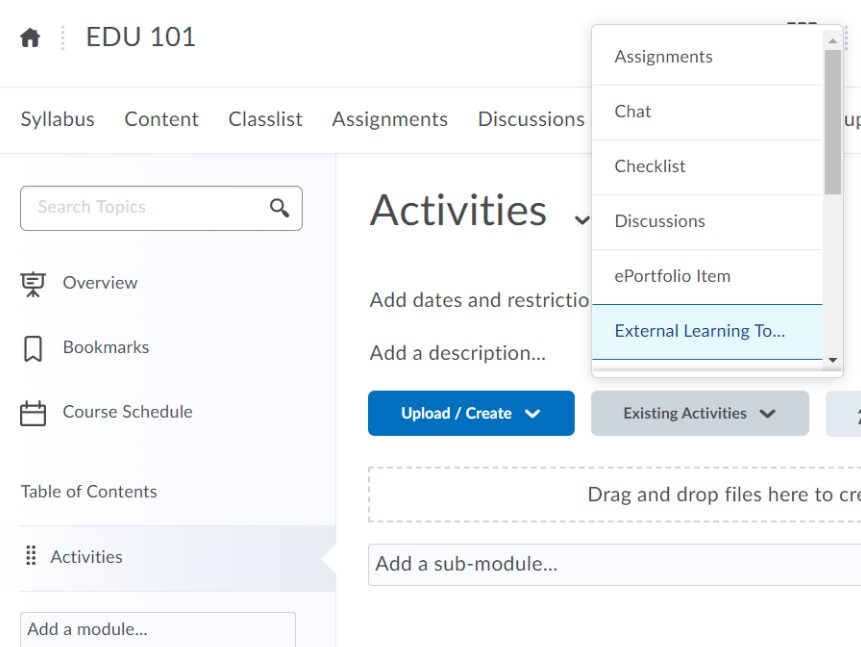
- Log into your D2L faculty account and navigate to the Content tab for your course
- Click Add a Module or go to an existing module
-
Click Existing Activities > External Learning Tools
-
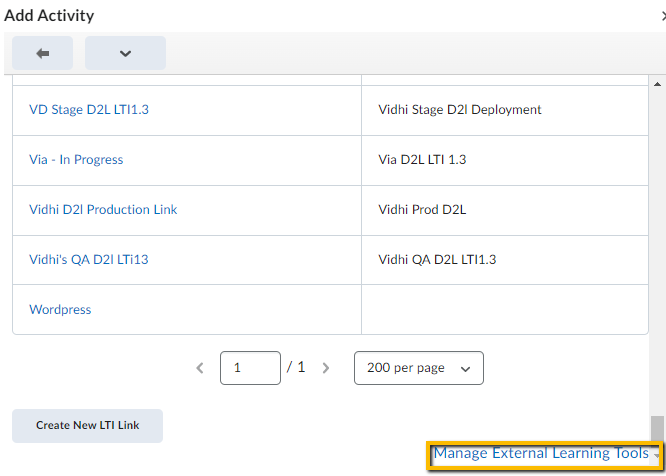
Click on
Manage External Learning Tools
-
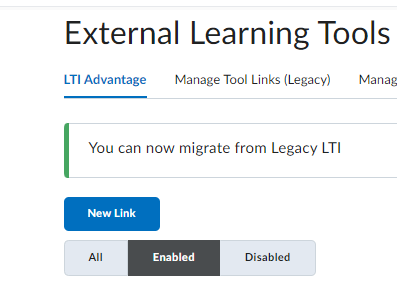
Create a new link using New Link option.
-
Provide below values to create account link
- Select your Tk20 Deployment from Deployment dropdown.
- Provide name value in the Name field.
-
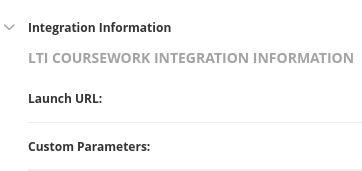
Provide URL from Tk20 LTI tool provider setup for account integration.
-
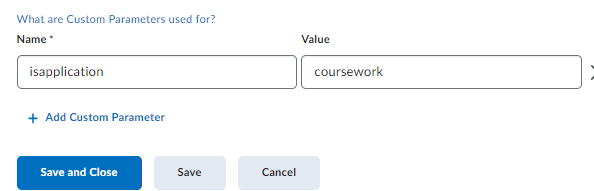
Provide Custom Parameters Name as isapplication and value as coursework
- Save the link using the Save and Close button.
- Go to your module Click Existing Activities > External Learning Tools search the link you made and click on it/run it.
-
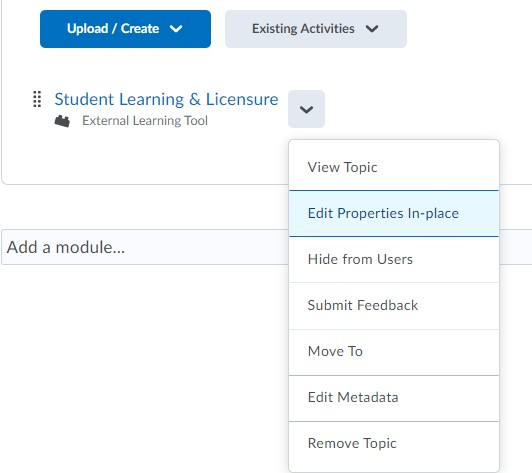
Click the Actions icon to the right of the link, and click Edit Properties In-place
-
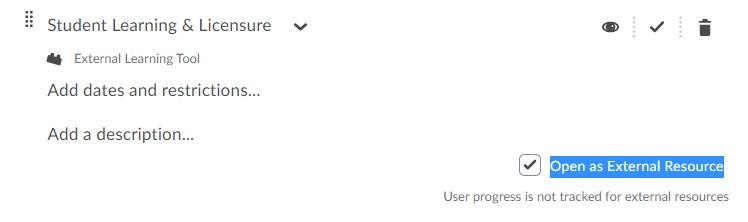
Ensure that Open as External Resource is selected
-
Change the title of the LTI link by clicking on it
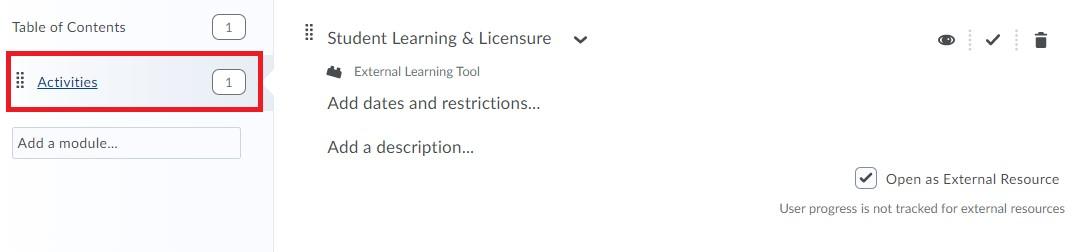
- Click on your module link displayed on the left side of the page
- On successful integration, the user will see the TK20 screen.